You want your Mac to take a screenshot every few minutes, on its own, without you pressing anything. Maybe to turn a day of work into a timelapse, to keep a visual log of what you did for a client, or to find something you saw on screen an hour ago.
There’s no setting for it. The Screenshot app (Shift-Command-5) has a timer, but it only delays a single screenshot by 5 or 10 seconds. It doesn’t repeat.
The quick answer. You can take automatic screenshots on a Mac for free with the built-in screencapture command, in a Terminal loop or scheduled with launchd. Both work, but multiple monitors, dated folders, disk space and the timelapse are all up to you. Below are five ways to take periodic screenshots on macOS, with their pros and cons, and the app I built and use. Three are free, two cost money.
If you’d rather not touch Terminal at all, skip to the app.
Method 1: A screencapture loop in Terminal
Every Mac comes with a command-line screenshot tool, screencapture. Put it in a loop and you have automatic screenshots in four lines. Open Terminal and paste this:
mkdir -p ~/Pictures/AutoScreenshots && cd ~/Pictures/AutoScreenshots
while true; do
  screencapture -x $(date +%Y-%m-%d_%H-%M-%S).png
  sleep 300
done
The first line makes the folder and moves into it, so the file names stay short. -x turns off the shutter sound, the date and time give every screenshot its own file name, and sleep 300 waits five minutes before the next one. Change it to 60 to take a screenshot every minute. Press Control-C to stop.
Terminal needs permission to record your screen. If macOS asks, allow it. If it doesn’t, turn Terminal on in System Settings > Privacy & Security > Screen & System Audio Recording. Without it, your screenshots come out showing just the wallpaper, with no windows.
If you have more than one monitor, screencapture wants one file name per display, in order, main display first. For two screens, the capture line becomes:
t=$(date +%Y-%m-%d_%H-%M-%S)
screencapture -x $t-display1.png $t-display2.png
The catch is that it only runs while that Terminal window stays open. Close it, log out or restart, and the screenshots stop.
Method 2: A launchd job that runs in the background
launchd is how macOS runs things on a schedule. A launchd job keeps taking screenshots with Terminal closed, and starts again on its own after a restart. It takes two files: a script that takes the screenshots, and a schedule that runs it every 5 minutes.
Show the launchd setup
The first is the script. Save it as autoscreenshot.sh in your home folder. It puts each day in its own folder and captures two displays. Remove the second file name if you only have one screen.
#!/bin/zsh
dir=~/Pictures/AutoScreenshots/$(date +%Y-%m-%d)
mkdir -p "$dir"
t=$(date +%H-%M-%S)
screencapture -x "$dir/$t-display1.png" "$dir/$t-display2.png"
The second is the schedule. Save it as ~/Library/LaunchAgents/com.you.autoscreenshot.plist, and replace you in the script path with your user name.
<?xml version="1.0" encoding="UTF-8"?>
<!DOCTYPE plist PUBLIC "-//Apple//DTD PLIST 1.0//EN" "http://www.apple.com/DTDs/PropertyList-1.0.dtd">
<plist version="1.0">
<dict>
  <key>Label</key>
  <string>com.you.autoscreenshot</string>
  <key>ProgramArguments</key>
  <array>
    <string>/bin/zsh</string>
    <string>/Users/you/autoscreenshot.sh</string>
  </array>
  <key>StartInterval</key>
  <integer>300</integer>
</dict>
</plist>
StartInterval is in seconds, so 300 takes a screenshot every 5 minutes. Start the job with:
launchctl bootstrap gui/$(id -u) ~/Library/LaunchAgents/com.you.autoscreenshot.plistAnd stop it with:
launchctl bootout gui/$(id -u)/com.you.autoscreenshotWatch out for guides whose plist saves every screenshot to the same file name. Each new one overwrites the last, and after a day of automatic screenshots you have exactly one.
Permissions are the fiddly part. A background job needs Screen Recording permission too, and which entry macOS wants depends on how the job starts. After the first run, look in Screen & System Audio Recording for a new entry and turn it on. If your screenshots show only the wallpaper, that’s what is missing.
What you still don’t get: it keeps capturing while you’re away, so a lunch break turns into an hour of identical frames. It can’t leave your password manager or private messages out of the picture. And nothing cleans up or makes the timelapse, which is the next two sections.
Method 3: The Shortcuts app
Shortcuts has a Take Screenshot action, and from macOS Tahoe onward it can run automations on the Mac too. But a Time of Day automation repeats daily, weekly or monthly, not every few minutes. That’s fine for one screenshot at 9 every morning. It’s no good for a record of your day. On macOS Sequoia and earlier, Shortcuts on the Mac has no automations at all.
Method 4: A screenshot or timelapse app
A few apps already do this, and one of them might be all you need.
TimeSnapper ($29.99 on the Mac App Store) is the closest to a record of your day. It captures all your monitors, cleans up old images, and plays your day back like a movie inside the app.
Lapse ($15) is made for turning a work session into a timelapse video. It captures one display or one window every 1 to 60 seconds, pauses when your screen locks, and exports MP4, GIF and several other formats. It keeps the screenshots only until you export.
timeLAPSE ($7.99 on the Mac App Store) takes screenshots every 1 second to 24 hours and compiles them into a timelapse video.
Shotomatic (from $39) is a broader screenshot automation tool. Interval capture and MP4 export sit alongside step by step guides built from your clicks and batch captures of websites.
If one of those fits the way you work, use it.
Method 5: A single-purpose app (what I use)
I wanted every display captured on a timer, a folder per day, old screenshots cleaned up on their own, and a timelapse at the end, without maintaining a script. That’s why I built AutoShot. It’s a menu bar app that takes automatic screenshots of every connected display, sorts them by day, and exports any day as a timelapse video.

The whole setup:
- Open AutoShot and give it Screen Recording permission. It walks you through it on first launch.
- In Settings, pick an interval: 1, 5, 10 or 30 minutes, or a custom one down to 5 seconds. PNG, JPEG or HEIC.
- Click Start Screenshots in the menu bar, or press Option-Shift-S from anywhere.
That’s it. If it was running when you quit or restarted, it picks up again the next time it opens, and it can start at login.
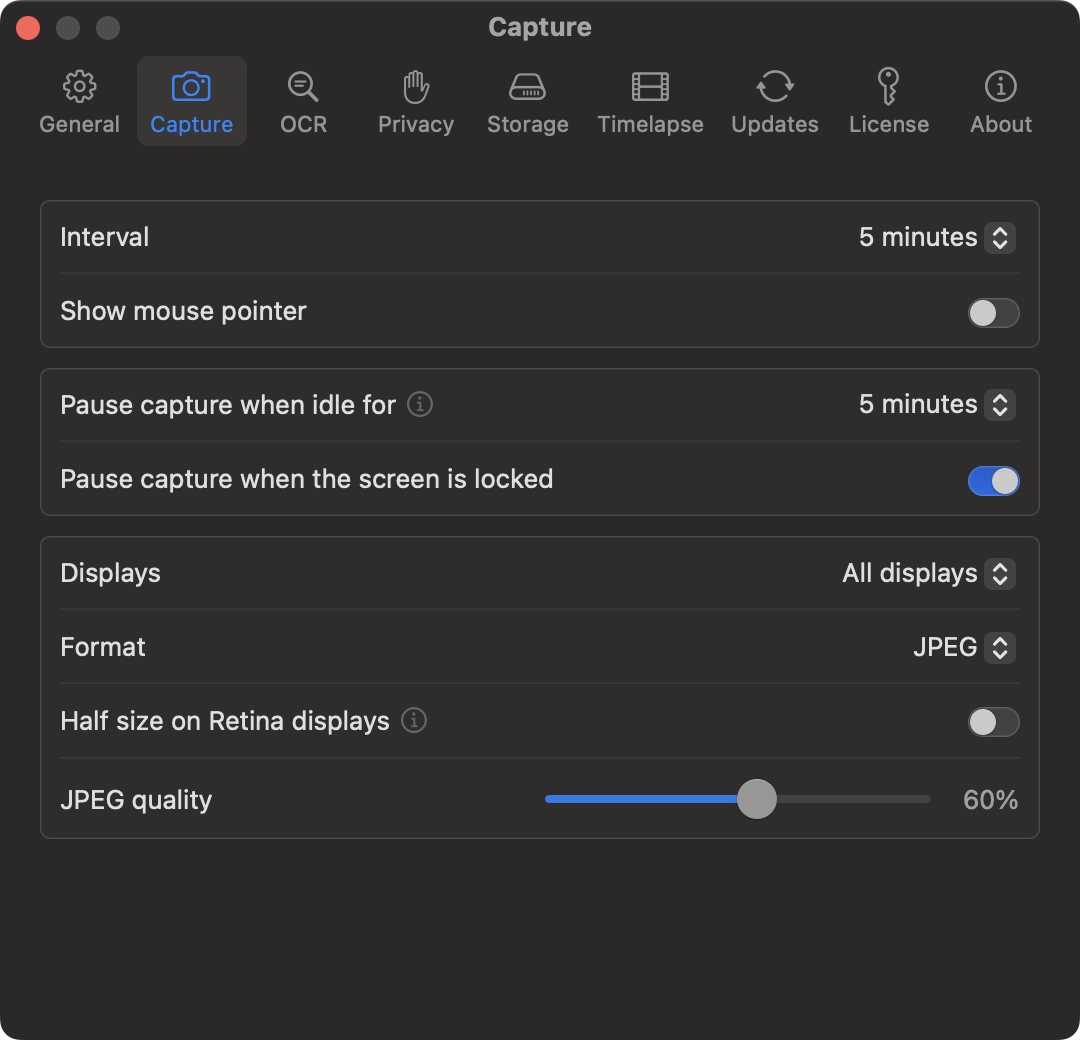
What it handles that a script doesn’t:
- Every display, kept separate. Each monitor gets its own file every time, and keeps its number even when you unplug another one. Or capture just the one you pick.
- A folder per day. In Pictures/AutoShot by default, with the date and time in every file name (and the display, from the second one on), so they sort in order in Finder.
- Find a screenshot by its text. Turn on OCR and AutoShot recognizes the text in each new screenshot, on your Mac, so Finder and Spotlight find it by any text that was on screen.
- Private apps stay out. Add your password manager or messaging app to Excluded Apps. Their windows never appear in a screenshot, even in the background, and while one of them is in front, AutoShot skips the capture. Notifications and desktop icons can be hidden too.
- Pauses when you’re away. Set “Pause capture when idle for” and AutoShot skips screenshots while you’re away, then picks up again when you’re back. It can also pause while the screen is locked, and handles sleep and wake on its own.
- Cleans up after itself. Keep screenshots from 10 minutes to 1 month. Older ones move to the Trash, or you can have them deleted permanently. Only AutoShot’s own screenshots, never your other files. Capture also pauses when free space runs low.
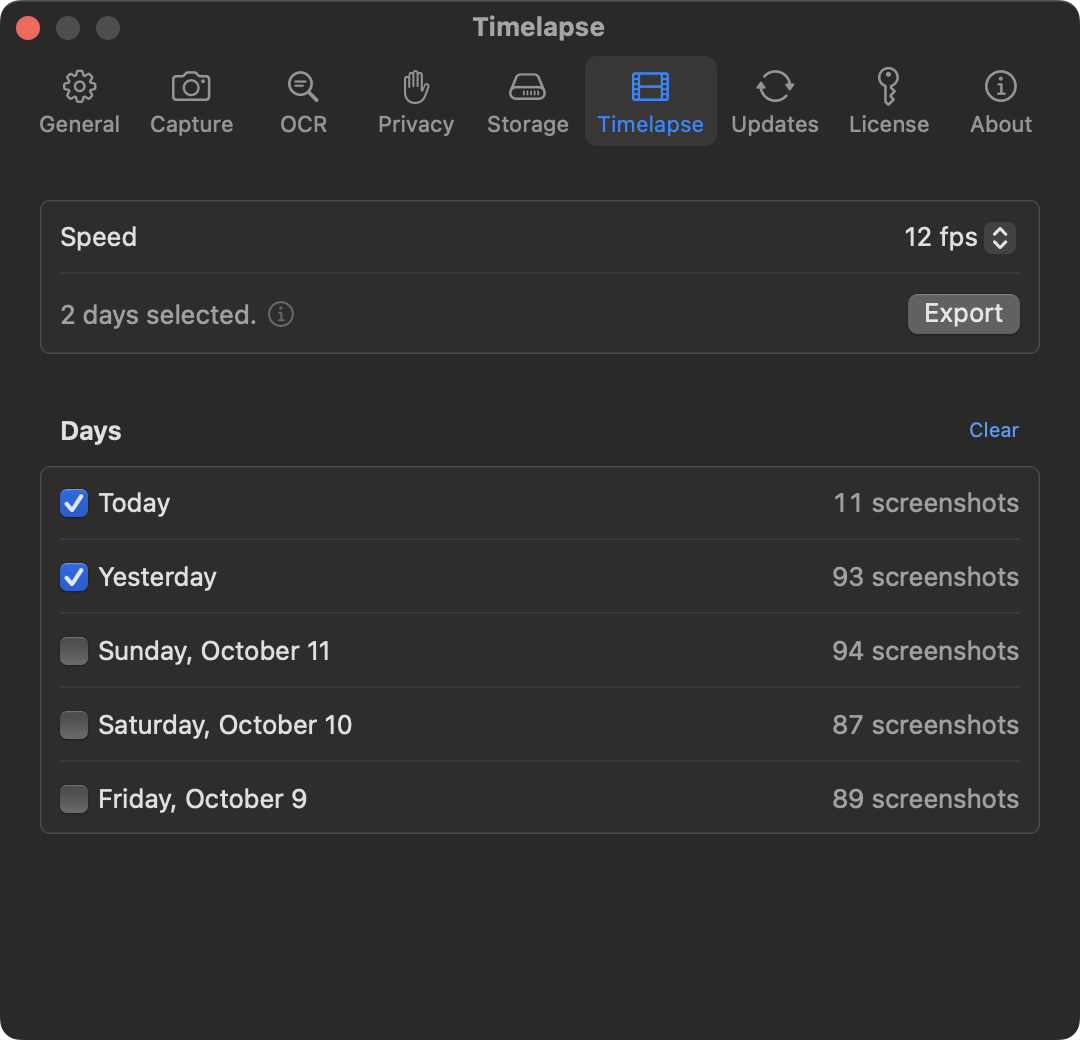
- Your day as a timelapse. Choose Export Today as Video from the menu, or pick one or more days in the Timelapse tab of Settings. You get one MP4 per display, at 8 to 30 fps, with every screenshot of those days in it.
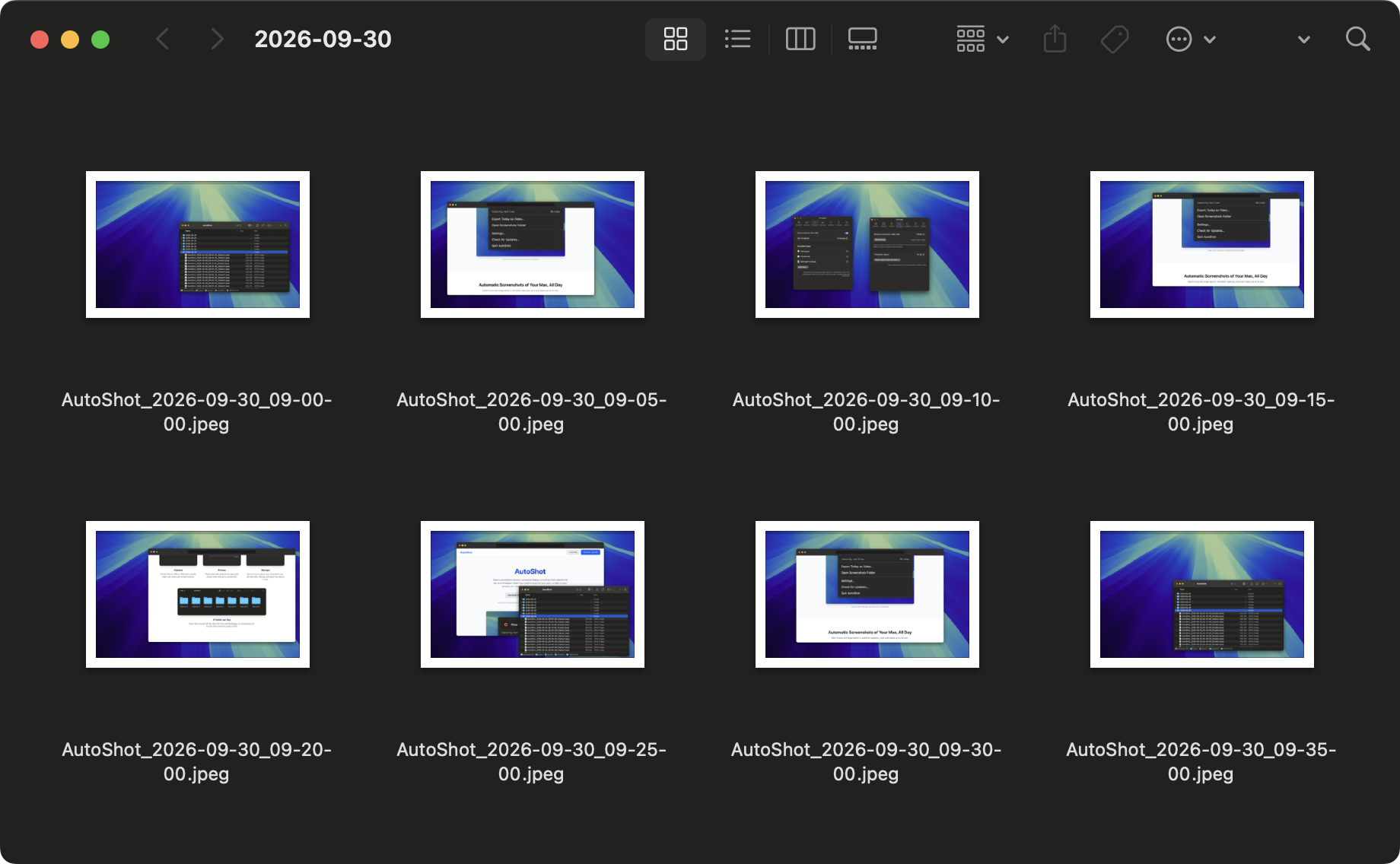
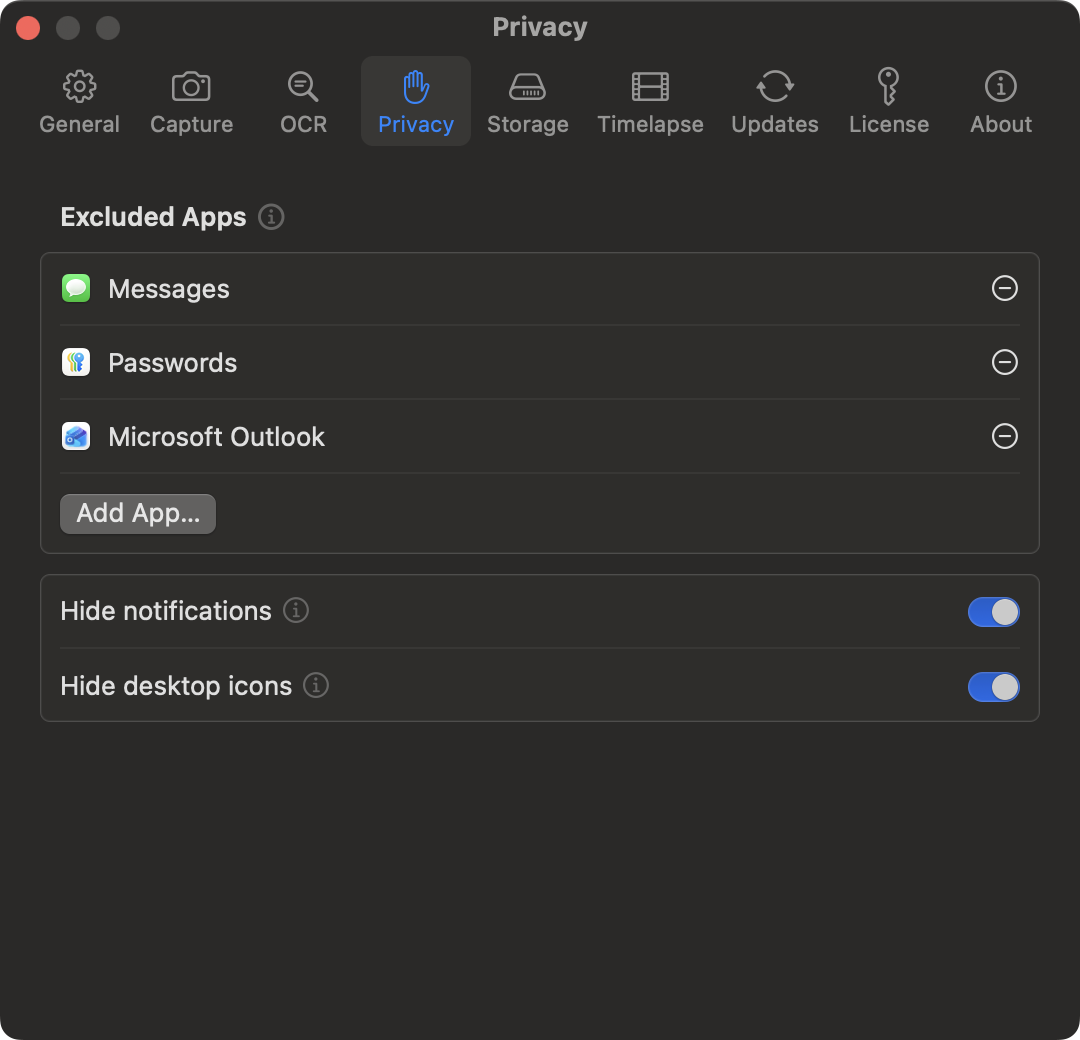
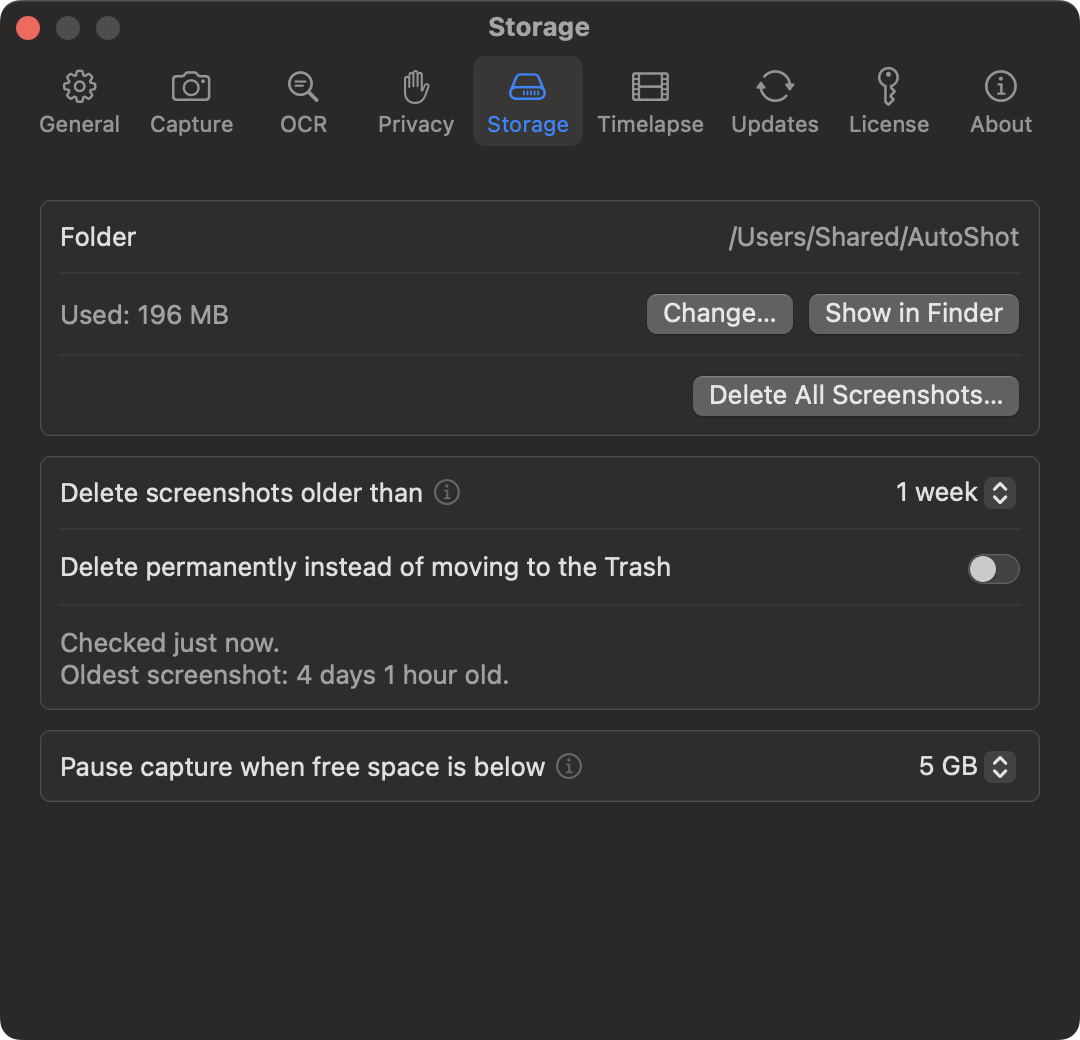
Everything stays on your Mac. No account, no tracking.
Turn your screenshots into a timelapse
If you went the free route, ffmpeg turns a folder of screenshots into a screen timelapse video. Install it with Homebrew (brew install ffmpeg), then run it in the day’s folder.
Show the ffmpeg command
cd ~/Pictures/AutoScreenshots/2026-09-29
ffmpeg -framerate 12 -pattern_type glob -i '*-display1.png' -vf "scale=trunc(iw/2)*2:trunc(ih/2)*2" -c:v libx264 -pix_fmt yuv420p timelapse-display1.mp4
-framerate 12 plays 12 screenshots per second of video. The scale part rounds the size down to even numbers, which the H.264 encoder needs, and yuv420p makes the video play in QuickTime. On two monitors, run it again with display2 to get a timelapse of each screen.
At 12 frames per second, a screenshot every 5 minutes turns an 8-hour day into 96 frames, about 8 seconds of video. With one every minute, it’s 480 frames and 40 seconds. How to Make a Timelapse of Your Mac Screen has the numbers for other intervals and frame rates.
In AutoShot there’s no command to run. Tick the days you want in the Timelapse tab and click Export, and you get one video per display in your screenshots folder.
Keep them from filling your disk
Automatic screenshots add up faster than you’d think. Every 5 minutes over an 8-hour day is 96 screenshots per display. A full-screen PNG of a Retina display is often several megabytes, so that’s hundreds of megabytes a day and gigabytes a week.
Two things help. Save JPEGs instead by adding -t jpg to the screencapture command and ending the file names in .jpg. They are much smaller. And clean up old screenshots automatically:
find ~/Pictures/AutoScreenshots -name '*.png' -mtime +7 -exec trash {} +That moves every screenshot older than a week to the Trash. The trash command is built into macOS 15 Sequoia and later. Add the line to the end of autoscreenshot.sh and the cleanup runs with every capture. On older macOS versions, replace -exec trash {} + with -delete, which removes them permanently, so double-check the folder path first.
Which method should you pick
| Terminal loop | launchd job | AutoShot | |
|---|---|---|---|
| Keeps running after a restart | No | Yes | Yes |
| Every display | One file name each | One file name each | Automatically |
| Folder per day | No | Yes | Yes |
| Keeps private apps out | No | No | Yes |
| Pauses when you’re away | No | No | Yes |
| Cleans up old screenshots | By hand | One extra line | Yes |
| Timelapse | With ffmpeg | With ffmpeg | Built in |
| Cost | Free | Free | $12.99 |
If you’re comfortable in Terminal and just need the screenshots, the launchd job is free and does the job. If one of the apps in Method 4 already fits, use it. If you want every display sorted by day, private apps kept out, old screenshots cleaned up and your day as a timelapse, without maintaining scripts, AutoShot is $12.99, one time, with a 14-day free trial that needs no account and no credit card.
FAQ
How do I take a screenshot every 5 minutes on a Mac?
Run screencapture in a loop with sleep 300 in Terminal (Method 1), schedule it with a launchd job set to StartInterval 300 (Method 2), or use an app with a 5-minute interval, like AutoShot. macOS has no built-in setting for it.
Why do my automatic screenshots only show the wallpaper?
Whatever takes them doesn’t have Screen Recording permission. macOS still saves an image, just without any windows in it. Turn it on in System Settings > Privacy & Security > Screen & System Audio Recording, for Terminal or for the app you use. Recent macOS versions also ask you to confirm it again from time to time.
Does it keep taking screenshots while my Mac is asleep?
No. Nothing can capture the screen while the Mac sleeps. The Terminal loop carries on after it wakes, launchd skips the runs it missed, and AutoShot picks up again on its own.
Can I keep passwords and private messages out of my screenshots?
Not with screencapture. It saves whatever is on screen. AutoShot has an Excluded Apps list for exactly this. Windows from those apps are left out of every screenshot, and while one of them is the active app, no screenshot is taken.
Can I take automatic screenshots of just one window?
screencapture -l captures a single window, but it needs that window’s ID, which you have to look up with a script. Lapse and Shotomatic can target one window directly. AutoShot captures whole displays.
How do I make a timelapse of my screen on a Mac?
Take a screenshot every few seconds or minutes, then join them into a video. With the free route that’s ffmpeg, as shown above. In AutoShot it’s Export Today as Video in the menu, with one video per display. For how often to capture, what frame rate to pick and how a sped-up screen recording compares, see How to Make a Timelapse of Your Mac Screen.