
Automatic Screenshots of Your Mac, All Day
Start it once and forget about it. AutoShot captures, sorts and cleans up on its own.
Every Display, On a Timer
Every 1, 5, 10 or 30 minutes, or any custom interval. Each connected display is captured into its own file, or just the one you pick, in PNG, JPEG or HEIC.
Your Day as a Timelapse
Export today with one click, or pick several days in the Timelapse tab and join them into one MP4. Pick the speed, and get one video per display.
Sorted by Day
Screenshots land in a folder per day, each file named with the date and time, so finding a moment is a quick look in Finder.
Keeps Private Apps Out
Exclude apps like your password manager or messages. Their windows never show up in a screenshot, and AutoShot skips the capture while one is in front. Notifications and desktop icons can be hidden too.
Pauses When You're Away
Choose “Pause capture when idle for” 1 to 30 minutes and AutoShot skips screenshots while you're away, then picks up again when you're back. It can also pause while the screen is locked, and handles sleep and wake on its own.
Automatic Cleanup
Choose how long to keep screenshots, from 10 minutes to 1 month. Older ones move to the Trash, and capture pauses if free space runs low.
New in 1.4
Find Any Screenshot by Its Text
AutoShot can recognize the text in every screenshot and save it with the file. Search in Finder or Spotlight for a name, a number or a line of code you remember, and you'll find the screenshot.
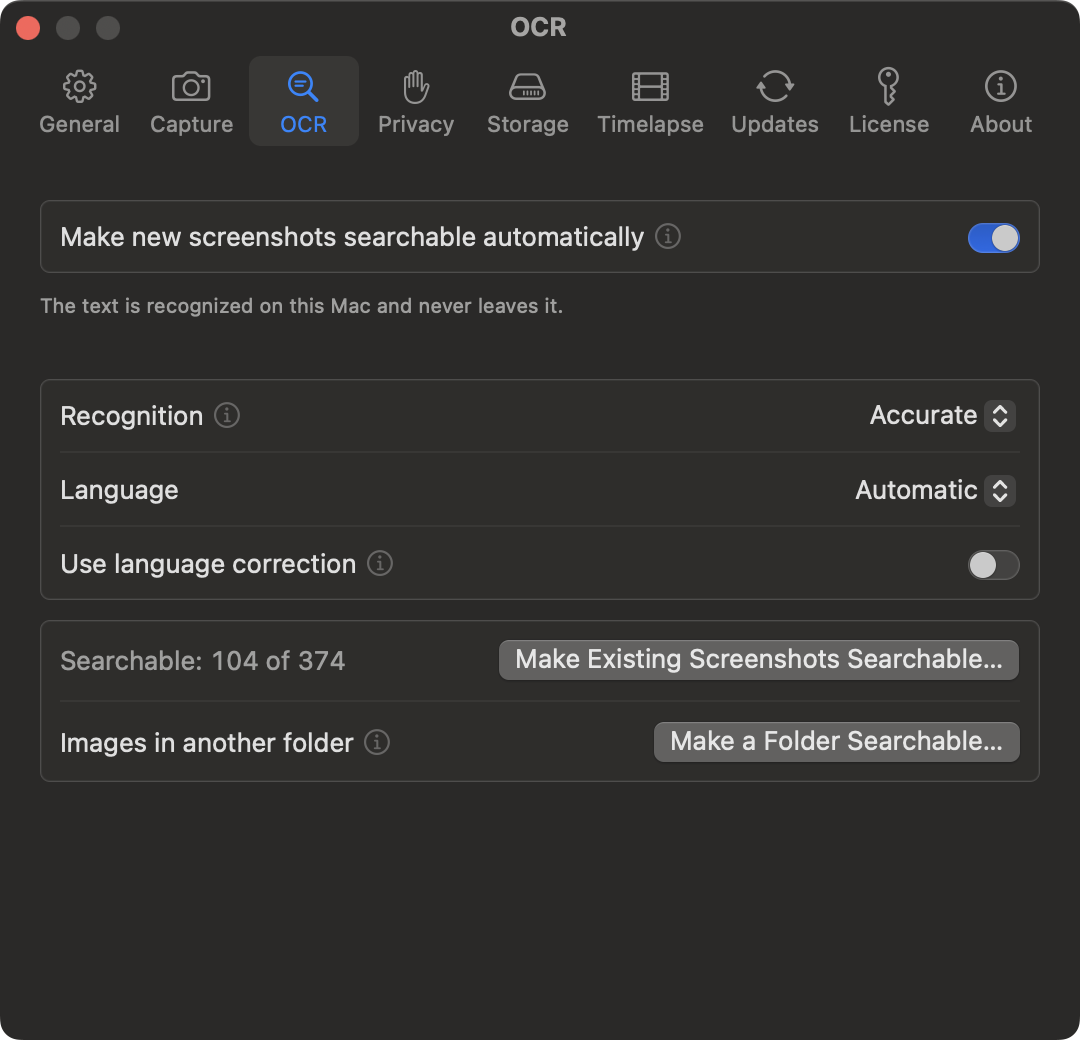
Everything lives in the OCR tab of Settings.
- Apple's built-in text recognition does the work on your Mac, and nothing is uploaded.
- New screenshots show up in search a few seconds after they're taken, and older ones can be added in one go.
- Any other folder can be read once too, such as the one your Shift-Command-4 screenshots land in.
- The text is stored in the file itself, so a screenshot still turns up after you move or rename it on your Mac.
See AutoShot in Detail
Start and stop from the menu bar, or with a global keyboard shortcut. Everything else is set once in Settings.
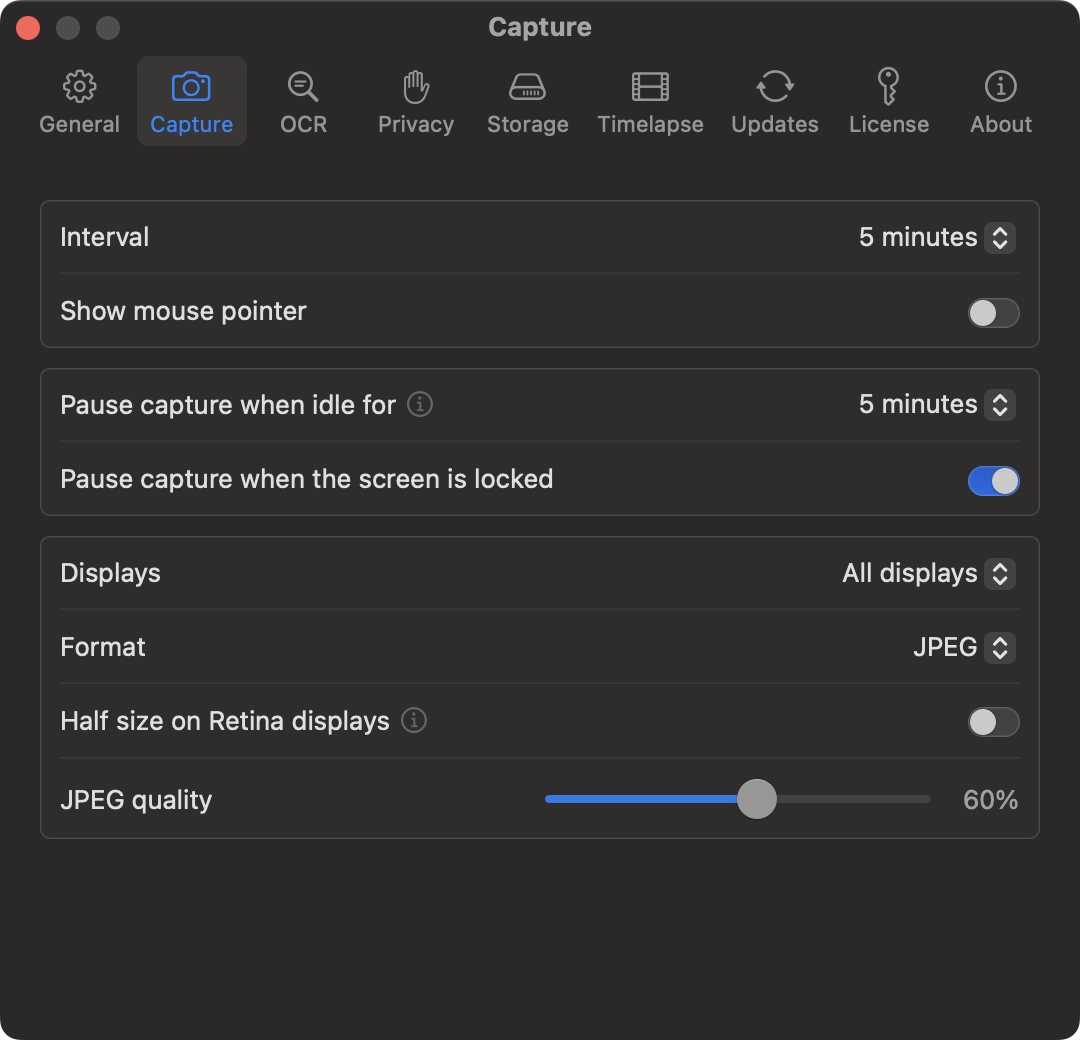
Capture
Set the interval, which displays, when to pause, and PNG, JPEG or HEIC, at full or half size.
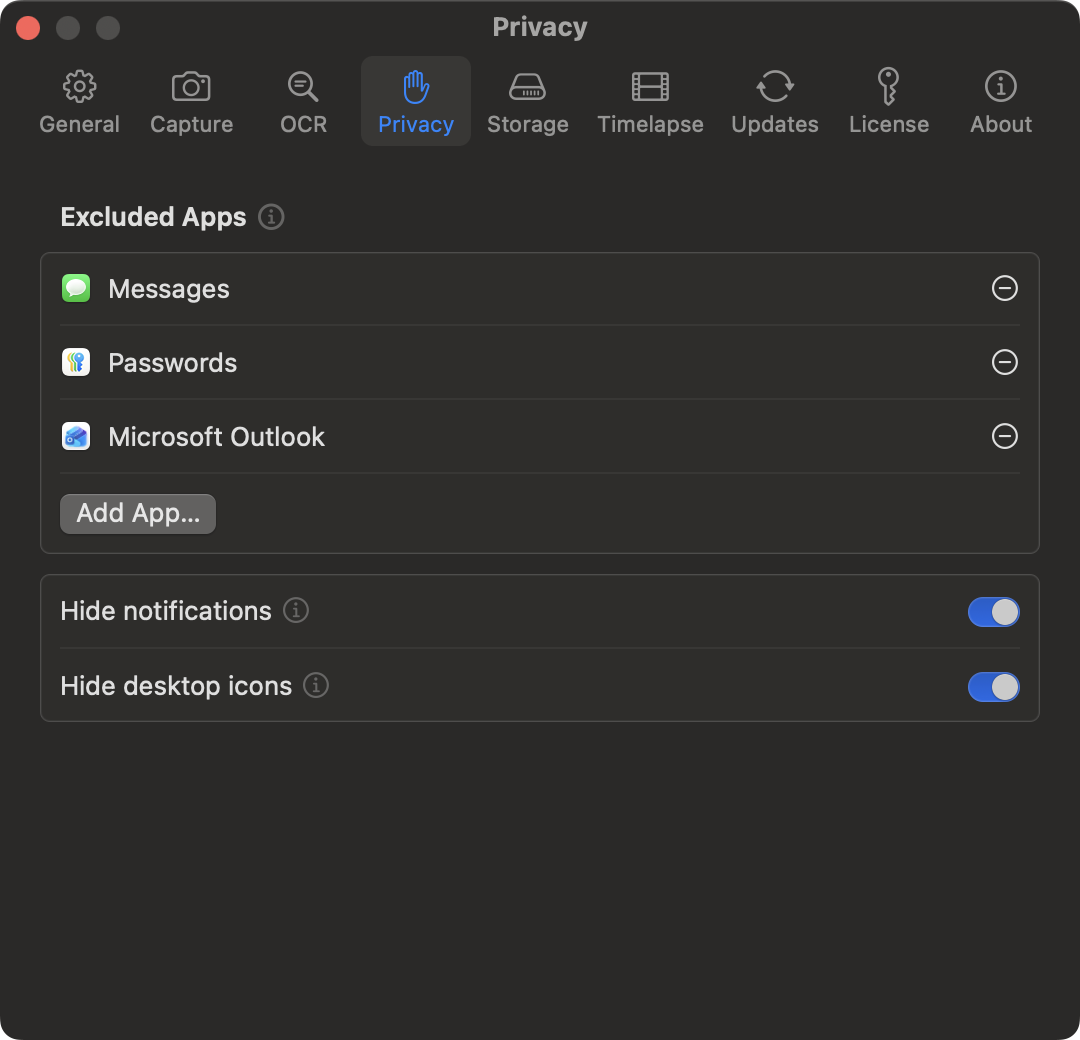
Privacy
Pick the apps that should never end up in a screenshot, and hide notifications and desktop icons.
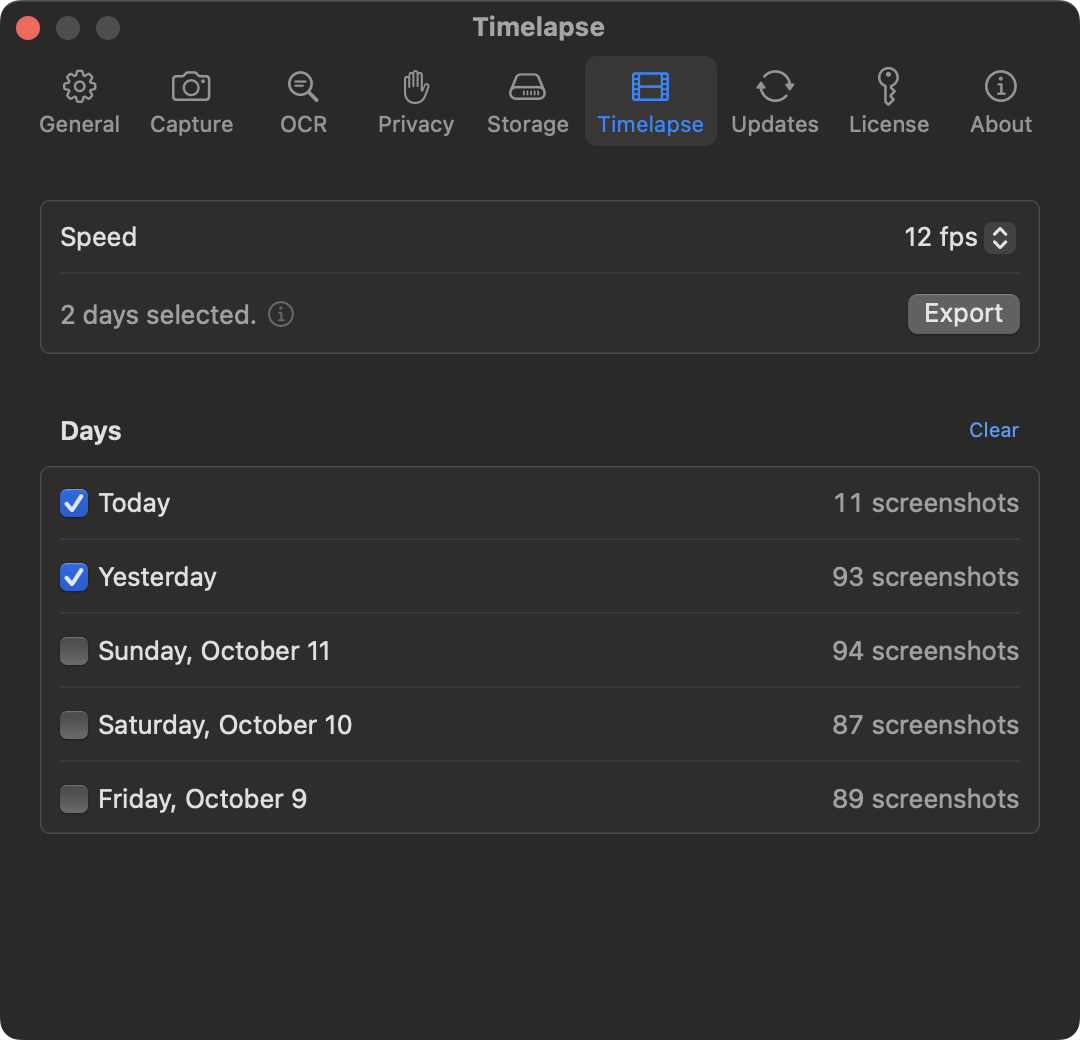
Timelapse
Pick one day or several, set the speed, and export them as one video per display.
Who AutoShot Is For
A quiet record of your screen, there when you need it.
When You Lose Something
Closed a tab, lost a message, or forgot what was on screen an hour ago? Search Spotlight for anything you remember from it and find the screenshot.
Designers and Artists
Turn a day of work into a timelapse of your process, ready to share, without running a screen recorder for hours.
Freelancers
Keep a visual log of what you worked on and when, to back up your timesheets or remember what a day went into.
Get AutoShot Today
Try every feature free for 14 days. No email, no credit card required to start.
AutoShot
Every feature included: all displays, text search, timelapse export, excluded apps, automatic cleanup, and the keyboard shortcut.
$12.99$9.99
Launch price. Goes back up to $12.99 on October 25.
- 14-day free trial, full features
- No subscription, lifetime license
- Free updates
- Use it on all your Macs
- 30-day money-back guarantee
Frequently Asked Questions
Why not just use the screencapture command or Shortcuts?
You can, and the blog has a step by step guide to the free methods. A Terminal loop stops when you close the window or restart your Mac, a launchd job needs a config file and never cleans up old screenshots, and Shortcuts automations only repeat daily, weekly or monthly. None of them keep private apps out, pause while you're away or turn a day into a timelapse. AutoShot does all of that from the menu bar.
How is AutoShot different from TimeSnapper, timeLAPSE, Lapse or Shotomatic?
AutoShot is built for all-day capture of every display, and keeps your screenshots as files you can browse in Finder. TimeSnapper ($29.99 on the Mac App Store) plays your day back inside the app. timeLAPSE ($7.99 on the Mac App Store) turns screenshots into a single video. Lapse ($15) captures one display or window and keeps the frames only until you export. Shotomatic ($39 for one Mac, or $12 a month) is a broader screenshot automation tool. AutoShot is a one-time purchase, $9.99 during the launch and $12.99 after, for all your Macs, with excluded apps, idle and lock screen pauses, automatic cleanup, a folder per day, text search in Finder and Spotlight, and timelapses of one or more days with one video per display. Prices as of October 2026.
Where are my screenshots saved?
In Pictures/AutoShot by default, or any folder you choose. AutoShot makes one folder per day, named like 2026-09-28, and names every file with the date, the time and the display it came from, so they sort in order in Finder.
Can I search my screenshots by the text on them?
Yes. Turn on “Make new screenshots searchable automatically” in the OCR tab, and AutoShot recognizes the text in each new screenshot and saves it with the file, so Finder and Spotlight find the screenshot by any text that was on screen. “Make Existing Screenshots Searchable…” does the same for the screenshots you already have, and “Make a Folder Searchable…” for any other folder. The text is recognized on your Mac and never leaves it.
Does AutoShot work with more than one monitor?
Yes. Every screenshot captures each connected display into its own file, or you can pick just one display in the Capture tab. When you export a day, you get one timelapse video per display. Each monitor keeps its number even when you unplug another one, so your videos don't get mixed up.
Can I keep private apps out of my screenshots?
Yes. Add apps like your password manager or messaging app to the Excluded Apps list. Their windows are never included in a screenshot, even when they're in the background, and while one of them is the active app AutoShot skips the capture entirely. You can also hide notifications and desktop icons from every screenshot.
How much disk space does AutoShot use?
It depends on your interval, your displays and the format. With the default JPEG at 60% quality, a screenshot of a Retina MacBook screen is about 0.5 MB, so one every 5 minutes over an 8-hour day comes to around 50 MB per display. The quality slider matters less than you'd think: 40% saves about a quarter, 80% adds about a third, and 100% makes every file about three times bigger. HEIC is about half the size of JPEG, and Half size on Retina displays cuts each file to about a third with text still readable. PNG keeps every pixel exact but takes 1 to 5 MB per screenshot. Set automatic cleanup to anything from 10 minutes to 1 month, and older screenshots go to the Trash on their own. Capture also pauses by itself when free space runs low. The Storage tab shows how much space your screenshots use.
Will automatic cleanup delete my other files?
No. Cleanup only touches screenshots AutoShot took itself, inside its own dated folders, and moves them to the Trash by default, so you can put back anything you still need.
Why does AutoShot need Screen Recording permission?
macOS requires Screen Recording permission for any app that takes screenshots. AutoShot asks for it once during setup. It only saves still images to the folder you choose, and nothing is uploaded anywhere.
Will AutoShot slow down my Mac or drain the battery?
No. Between screenshots AutoShot just waits on a timer. Each screenshot is one still image per display, taken with Apple's own ScreenCaptureKit. Text recognition, when you turn it on, takes about half a second per display on an M1 Mac. With the idle pause on, it also skips screenshots while you're away from your Mac.
Does AutoShot run on Apple Silicon and Intel Macs?
Yes. AutoShot is a universal app that runs natively on both Apple Silicon and Intel Macs with macOS 14 Sonoma or later.
Does AutoShot collect any data?
No usage tracking or analytics. Your screenshots never leave your Mac, and neither does the text AutoShot recognizes in them. AutoShot only goes online to check for app updates and to activate your license once with your email.
What happens when the free trial ends?
AutoShot stops taking new screenshots until you activate a license. Everything you already captured stays where it is, and you can still open the folder, export timelapses and change settings.
How many Macs can I use AutoShot on?
All of them. One purchase is a personal license for every Mac you own or control. Activate each one with the email you bought it with.
Is there a subscription?
No. AutoShot is a one-time purchase, $9.99 during the launch and $12.99 from October 25, with a 14-day free trial and no recurring charges.
How do I get support?
If you have any questions or need assistance, please contact us.
Still weighing the options?
Every way to take screenshots automatically on a Mac, from a Terminal loop to Shortcuts, what each one leaves out, and how the apps compare on price.