You want a video of your screen that squeezes an hour of drawing, coding or design work into a minute. Maybe to post your process, to show a client how a project came together, or just to see where your day went.
There’s no setting for it. The Screenshot app (Shift-Command-5) records your screen at normal speed, and QuickTime Player can’t speed a recording up.
The quick answer. There are two ways to make a timelapse of your Mac screen: record a normal screen video and speed it up, or take a screenshot every few seconds and join them into a video. Both are free. The second is what timelapse apps do, and it’s the one that still works when you capture for more than an hour. Below are both, how to pick the interval and the frame rate, the apps that do it for you, and the app I built and use.
If you’d rather not touch Terminal at all, skip to the app.
Recording or screenshots?
A screen recording keeps every frame, 30 or 60 of them a second. A timelapse throws almost all of them away. An hour recorded at 60 frames per second is 216,000 frames, and a one minute timelapse at 30 fps uses 1,800 of them. So if you record first and speed it up later, you store hours of video to keep one minute of it.
Taking a screenshot every few seconds keeps only the frames you’ll use. A whole day at one every 30 seconds is about 480 MB.
A rule of thumb: for a session under an hour, recording and speeding it up is fine, and the motion comes out smoother. For anything longer, or a whole day, take screenshots.
Method 1: Record your screen and speed it up
- Press Shift-Command-5, choose Record Entire Screen in the toolbar and click Record. With more than one monitor, you then click the screen you want. It records one display at a time.
- Work as usual. When you’re done, click the stop button in the menu bar. The recording lands on your Desktop as a .mov file.
- Speed it up. In iMovie (free from Apple), drag the recording into a project, select it, click the speed button above the viewer, choose Fast, then 20x.
iMovie stops at 20x, so an hour becomes three minutes, which is still long for a timelapse. ffmpeg goes as fast as you like in one command. Install it with Homebrew (brew install ffmpeg), rename the recording to recording.mov and run this in the same folder:
ffmpeg -i recording.mov -vf "setpts=PTS/60" -r 30 -an -c:v libx264 -pix_fmt yuv420p timelapse.mp4setpts=PTS/60 plays it 60 times faster, so an hour becomes a minute. Change 60 to speed it up more or less. -r 30 keeps the video at 30 frames per second and drops the rest, -an leaves out the sound, and yuv420p makes the video play in QuickTime.
The catch: a long recording takes up gigabytes of disk space, and you throw most of it away when you speed it up. It also keeps recording while you’re away, and everything that crosses your screen ends up in the video.
Method 2: Take a screenshot every few seconds and join them
Every Mac comes with a command-line screenshot tool, screencapture. Put it in a loop and you have a timelapse camera. Open Terminal and paste this:
mkdir -p ~/Pictures/Timelapse && cd ~/Pictures/Timelapse
while true; do
  screencapture -x -t jpg $(date +%Y-%m-%d_%H-%M-%S).jpg
  sleep 10
done
-x turns off the shutter sound, -t jpg saves JPEGs, which are much smaller than PNGs, and the date and time give every screenshot its own file name, in order. sleep 10 waits ten seconds before the next one. Add -C after -x if you want the mouse pointer in the picture. Press Control-C to stop.
Terminal needs permission to record your screen. If macOS asks, allow it. If it doesn’t, turn Terminal on in System Settings > Privacy & Security > Screen & System Audio Recording. Without it, your screenshots come out showing just the wallpaper, with no windows.
When you’re done, join them into a video with ffmpeg (brew install ffmpeg if you skipped Method 1):
cd ~/Pictures/Timelapse
ffmpeg -framerate 24 -pattern_type glob -i '*.jpg' -vf "scale=trunc(iw/2)*2:trunc(ih/2)*2" -c:v libx264 -pix_fmt yuv420p timelapse.mp4
-framerate 24 plays 24 screenshots per second of video. The scale part rounds the size down to even numbers, which the H.264 encoder needs, and yuv420p makes the video play in QuickTime.
The loop only runs while that Terminal window stays open, and it keeps going while you’re away. For two monitors, a version that keeps running after a restart, and cleaning up old screenshots, see How to Take Screenshots Automatically on Mac.
How often to capture, and how fast to play it
Two numbers decide what your timelapse looks like: how often you take a screenshot, and how many screenshots play per second of video. Here’s what an 8-hour day comes to:
| Screenshot every | Screenshots | Video at 12 fps | Video at 30 fps | Disk space |
|---|---|---|---|---|
| 5 seconds | 5,760 | 8 min | 3 min 12 s | About 2.9 GB |
| 10 seconds | 2,880 | 4 min | 1 min 36 s | About 1.4 GB |
| 30 seconds | 960 | 1 min 20 s | 32 s | About 480 MB |
| 1 minute | 480 | 40 s | 16 s | About 240 MB |
| 5 minutes | 96 | 8 s | 3 s | About 50 MB |
Disk space is for one Retina display saved as JPEG at 60% quality, about half a megabyte per screenshot. A PNG of the same screen is often several times bigger.
What works well:
- A session of an hour or two, like a drawing or a coding sprint: every 5 to 10 seconds. An hour at every 5 seconds is 720 screenshots, 30 seconds of video at 24 fps.
- A whole workday: every 10 to 20 seconds, for a video of one to two minutes at 24 fps.
- A project over several weeks: every 5 minutes, and join several days into one video.
For the frame rate, 24 or 30 fps looks smooth when little changes between screenshots. When a lot changes from one to the next, as it does on a busy screen, 8 or 12 fps gives your eyes time to see each frame instead of a flicker.
Tips for a better screen timelapse
- Turn on Do Not Disturb. Notifications pop up in a single frame and flash past. A Focus in Control Center keeps them off your screen while you capture.
- Keep private apps out. A recording or a
screencaptureloop saves whatever is on screen, including your messages and your password manager. Close them, or use an app that leaves them out. - Skip the time you’re away. A lunch hour captured every 10 seconds is 15 seconds of the same frame at 24 fps. Stop the capture when you step away, or use an app that pauses on its own.
- Decide on the mouse pointer. In a timelapse the pointer jumps from place to place. It helps when you’re drawing and distracts when you’re writing.
Method 3: A timelapse app
A few apps already do this, and one of them might be all you need.
Lapse ($15) is made for turning a work session into a timelapse video. It captures one display or one app window every 1 to 60 seconds, pauses when your screen locks, and exports MP4, GIF and several other formats. It keeps the screenshots only until you export.
timeLAPSE ($7.99 on the Mac App Store) takes screenshots every 1 second to 24 hours and compiles them into a timelapse video.
TimeSnapper ($29.99 on the Mac App Store) captures all your monitors, cleans up old images, and plays your day back like a movie inside the app.
Shotomatic (from $39) is a broader screenshot automation tool. Interval capture and MP4 export sit alongside step by step guides built from your clicks and batch captures of websites.
If you want a timelapse of a single window, or a frame every second, Lapse fits better than what I use.
Method 4: A single-purpose app (what I use)
I wanted every display captured all day, the screenshots kept as files I can browse, and a timelapse whenever I want one, without leaving a Terminal window open all day. That’s why I built AutoShot. It’s a menu bar app that takes a screenshot of every connected display on a timer, sorts them into a folder per day, and turns any day, or several, into a timelapse video.
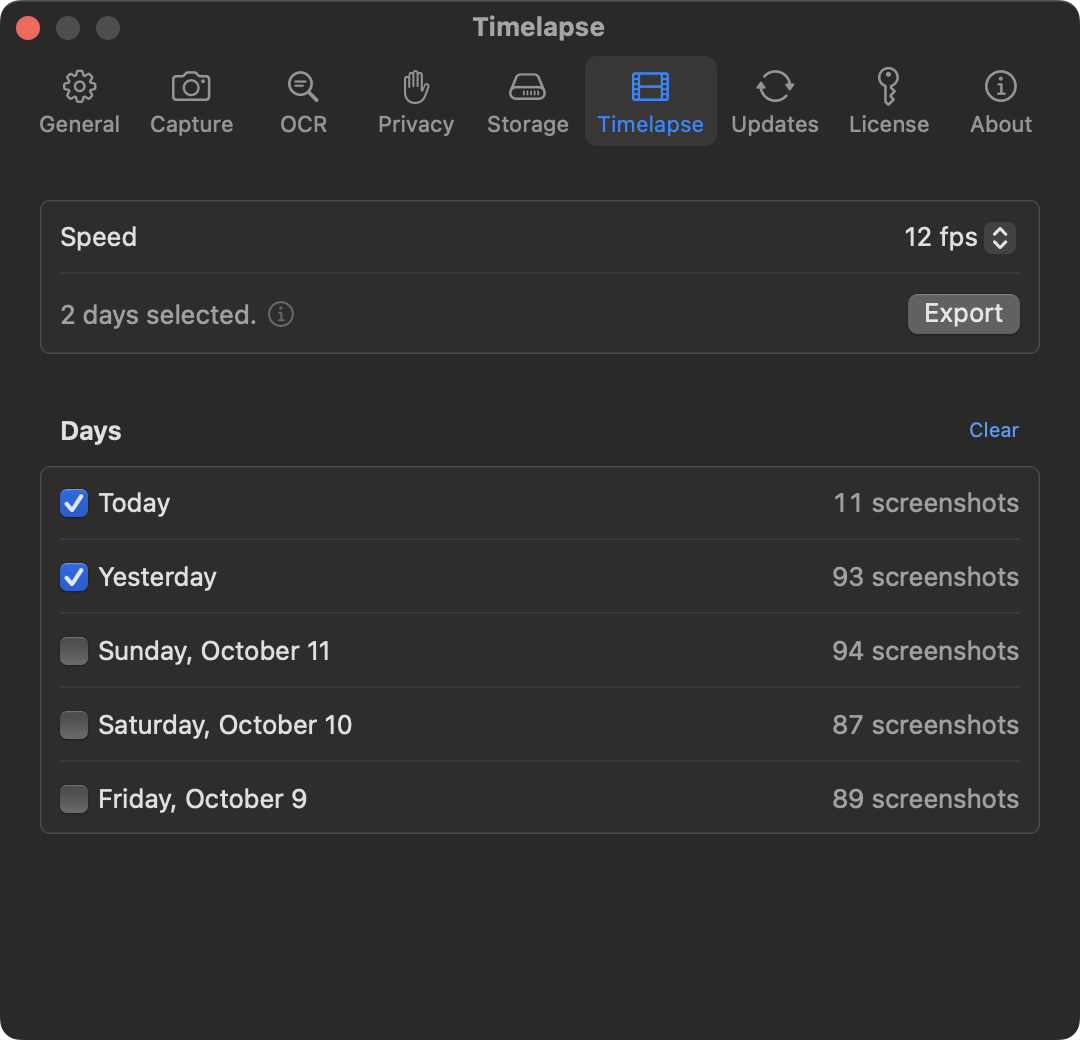
The whole setup:
- Open AutoShot and give it Screen Recording permission. It walks you through it on first launch.
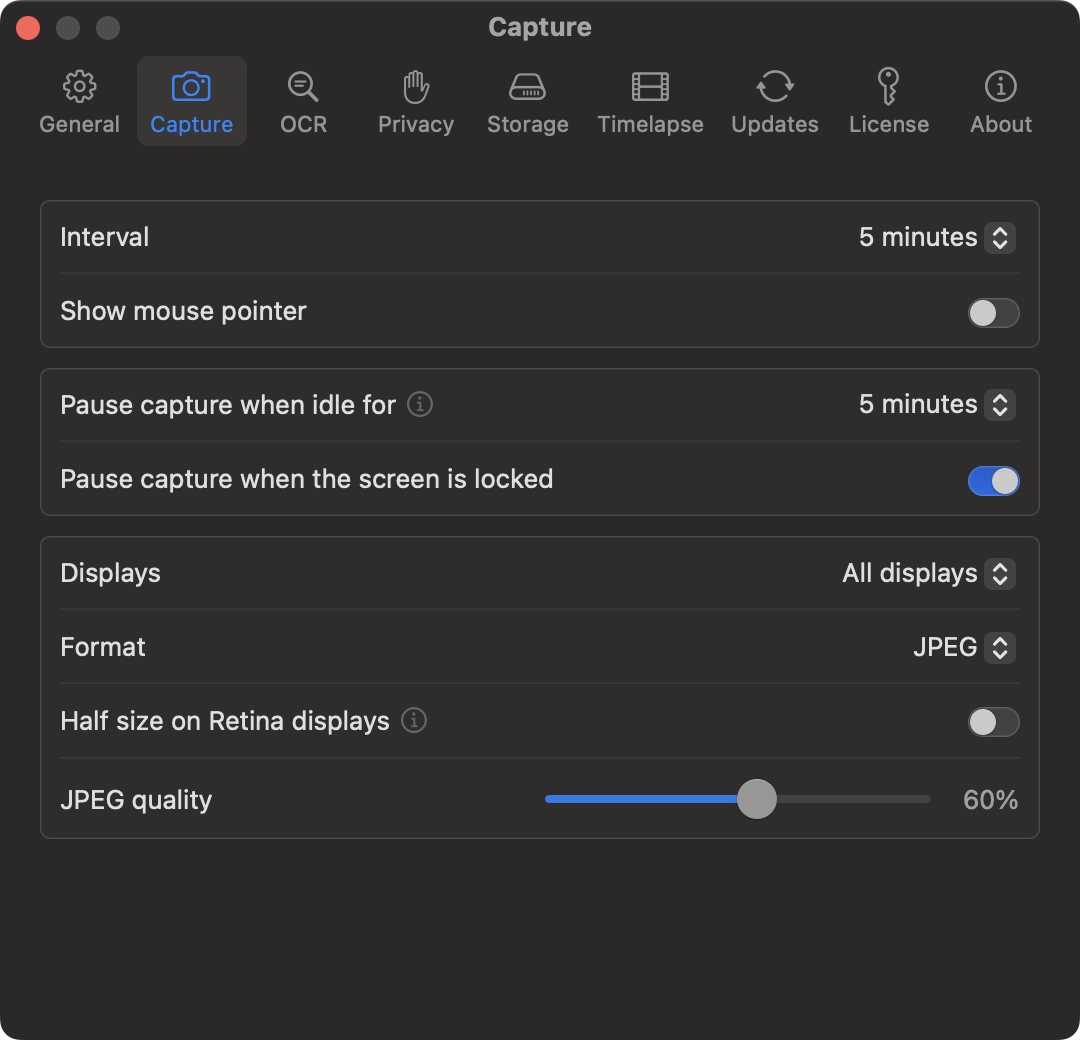
- In Settings, pick an interval: 1, 5, 10 or 30 minutes, or a custom one down to 5 seconds.
- Click Start Screenshots in the menu bar, or press Option-Shift-S from anywhere, and work as usual.
- When you’re done, choose Export Today as Video from the menu. Or open the Timelapse tab in Settings, tick one or more days, pick a speed from 8 to 30 fps, and click Export.
What you get:
- One video per display. An MP4 for each monitor, at its full resolution, saved in your screenshots folder. It plays in QuickTime and most video apps.
- Several days in one video. Pick a few days and get them as one video per display.
- The screenshots stay. They’re ordinary files in a folder per day, so you can delete a boring stretch before you export, or export again later.
While it runs:
- Private apps stay out. Add your password manager or messaging app to Excluded Apps. Their windows never appear in a screenshot, even in the background, and while one of them is in front, AutoShot skips the capture. Notifications and desktop icons can be hidden too.
- Pauses when you’re away. Set “Pause capture when idle for” and AutoShot skips screenshots while you’re away, then picks up again when you’re back. It can also pause while the screen is locked.
- Your choice of pointer. “Show mouse pointer” in the Capture tab puts it in the picture.
- Cleans up after itself. Keep screenshots from 10 minutes to 1 month. Older ones are moved to the Trash or deleted, whichever you choose. Only AutoShot’s own screenshots, never your other files.
Everything stays on your Mac. No account, no tracking.
Which method should you pick
| Record and speed up | Screenshots and ffmpeg | AutoShot | |
|---|---|---|---|
| Best for | Under an hour | Any length | Every day, all day |
| Disk space | Full-speed video | Only the frames you keep | Only the frames you keep, cleaned up for you |
| Every display | One at a time | One file name each | Automatically, one video each |
| Keeps private apps out | No | No | Yes |
| Skips time away | No | No | Yes |
| Making the video | iMovie or ffmpeg | ffmpeg | One click |
| Cost | Free | Free | $12.99 |
For a one-off session, record it and speed it up, or run the screenshot loop. If you want one window or a frame every second, try Lapse. If you want every display captured all day, private apps kept out, time away skipped and a timelapse of any day whenever you want one, AutoShot is $12.99, one time, with a 14-day free trial that needs no account and no credit card.
FAQ
Can QuickTime make a timelapse?
No. QuickTime Player records your screen at normal speed and has no way to save a sped-up copy. Record with it or the Screenshot app, then speed the recording up in iMovie or with ffmpeg, as in Method 1.
How long should a screen timelapse be?
For social media, 15 to 60 seconds. At 24 fps, that’s 360 to 1,440 screenshots, so for a two-hour session take one every 5 to 20 seconds. The table above has the numbers for a full day.
Can I make a timelapse of just one window?
Lapse can capture a single app window. screencapture -l can too, but it needs that window’s ID, which you have to look up with a script. The Screenshot app records a whole display or a fixed area, and AutoShot captures whole displays.
Can I make a timelapse of two monitors?
Yes, one video per monitor. With screencapture, give it one file name per display and run ffmpeg once for each. AutoShot captures every display and exports one video for each on its own.
Does it keep capturing while my Mac is asleep?
No. Nothing can capture the screen while the Mac sleeps. The Terminal loop carries on after it wakes, and AutoShot and Lapse pick up again on their own.