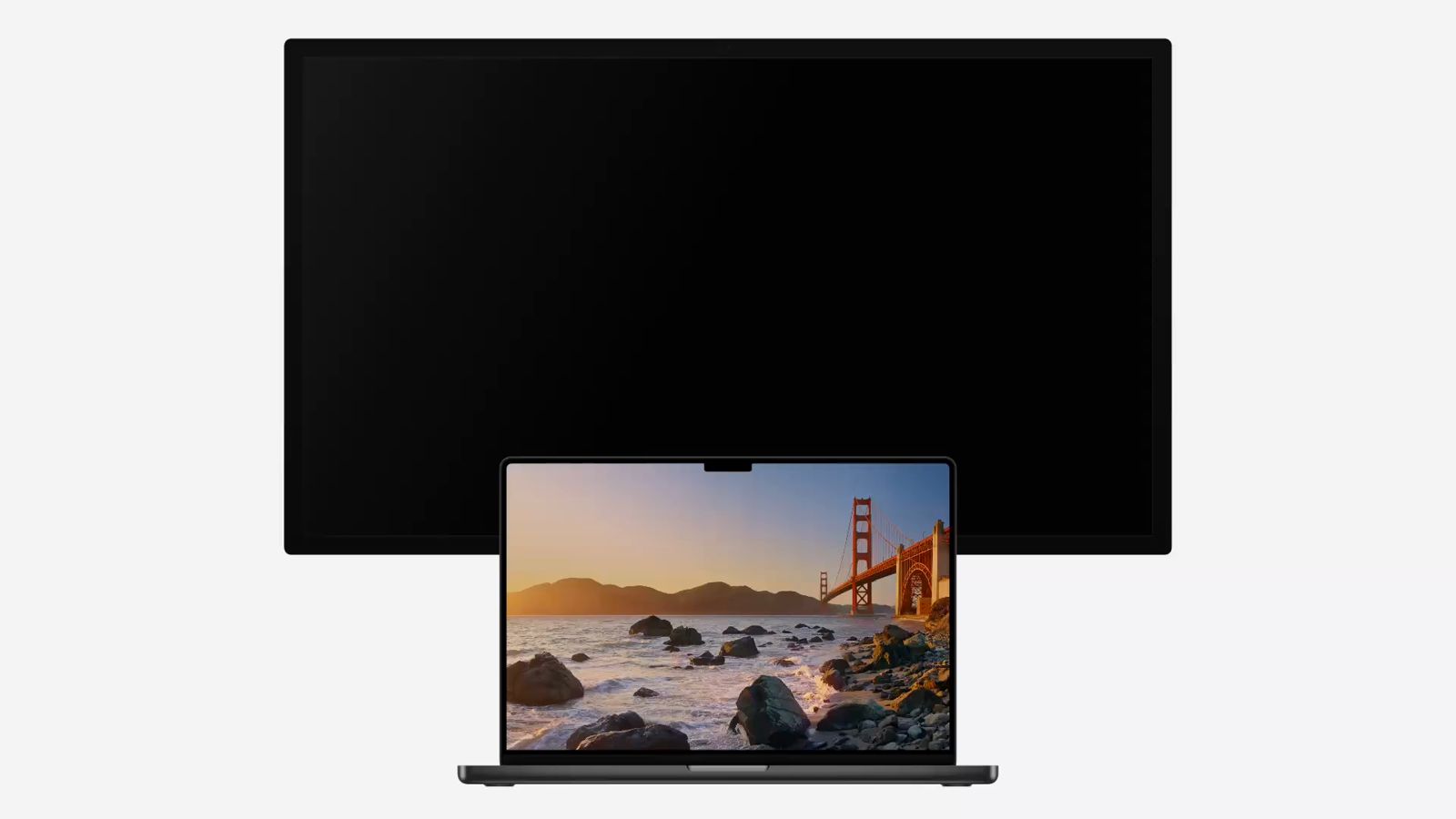
Turn Off Your MacBook Screen Without Closing the Lid
macOS keeps the internal display on whenever the lid is open. Unlit turns it off.
One-Click Toggle
Turn the internal display on or off instantly from the menu bar, or with a global keyboard shortcut.
Auto-Hide on Connect
Plug in an external monitor and the internal display hides itself. Unplug it and Unlit brings it right back.
Two Display Modes
Standard Dim keeps the screen dark using built-in macOS features. Hardware Disconnect powers the panel off completely.
Sleep & Wake Safe
Wake your Mac or plug in a different monitor and macOS turns the internal screen back on. Unlit remembers your setting and turns it off again.
Menu Bar Only
Unlit sits in the menu bar and stays out of the way. No dock icon, no app window, nothing to keep open. You can also have the icon appear only while an external monitor is connected.
No Usage Tracking
No analytics, no usage tracking. Unlit only goes online to check for updates and to activate your license once.
How Unlit Turns Off Your Internal Display
Two ways to turn the screen off. Start with the default, switch if you want more.
Everything lives in this one menu.
Standard Dim (Default)
Your workspace moves to the external monitor, the internal screen goes black, and its brightness drops to zero. Nothing can land on it by accident. Built entirely on standard macOS features, so it keeps working across macOS updates.
Hardware Disconnect (Advanced)
Powers the internal display down completely, the same way unplugging a monitor would, for the best performance and battery life. It uses low-level system controls, with several fallbacks that bring the panel back if something goes wrong, though on rare occasions a restart is still needed. If it can't be used on your Mac, Unlit falls back to Standard Dim.
A Lighter Alternative to BetterDisplay or Lunar
BetterDisplay and Lunar's Blackout mode are solid tools, but they're built to manage every display setting you have. If all you want is your internal screen off, Unlit does just that.
Unlit
$7.99
One-time purchase, free updates for life
One job: hide the internal display when an external monitor is attached. Nothing else to configure.
BetterDisplay
$21.99
One-time, 1 year of updates included
A full display-management suite with dozens of features, Disconnect Display is one of many.
Lunar
$23
One-time lifetime license
Primarily a brightness/HDR tool, BlackOut mode is one feature bundled into the full app.
Get Unlit Today
Try every feature free for 14 days. No account, no credit card required to start.
Unlit
Every feature included: both display modes, auto-hide when you connect a monitor, and the keyboard shortcut.
$7.99
- 14-day free trial, full features
- No subscription, lifetime license
- Free updates
- Use it on all your Macs
- 30-day money-back guarantee
Frequently Asked Questions
Why not just press Control-Shift-Power?
On MacBooks with Touch ID, which is every current model, that shortcut doesn't work. On older ones it sleeps every display, your external monitor included, and the next keypress wakes them all back up. Unlit turns off only the internal display, so you keep working on the external one with the MacBook's built-in keyboard, trackpad and Touch ID.
Can I run two external monitors on my M1 MacBook Air with Unlit?
No. Turning off the internal display doesn't free up a display pipeline. On the M1 MacBook Air and Pro, Apple reserves one of the chip's display connections for the built-in screen. Turning that screen off doesn't hand the connection back, so it can't be used for a second monitor. M1 Pro and Max chips can already natively drive two and four external displays, and the M3 MacBook Air supports two, but only with the lid closed, which is outside Unlit's lid-open use case. If you need a genuine second external display on a MacBook Air, a DisplayLink adapter (USB graphics, its own driver) is the real workaround.
How does Unlit turn off the internal display?
Unlit has two modes. Standard Dim is the default: it mirrors the internal panel onto your external display, drops the brightness to zero, and turns the picture black. The screen is completely dark and nothing can land on it, and macOS carries on as normal. Hardware Disconnect is an advanced mode that actually powers the internal panel off, the way unplugging a monitor would. It gives you real power savings, but on Apple Silicon it can occasionally need a reboot to recover, so you can always switch back to Standard Dim. If Hardware Disconnect can't be used on your Mac, Unlit falls back to Standard Dim.
How is Unlit different from Lunar's BlackOut or BetterDisplay's Disconnect Display?
Same underlying approaches, bundled together instead of split by hardware. On Apple Silicon, Lunar's BlackOut and BetterDisplay's Disconnect Display power the panel off using a private macOS API, the same one behind Unlit's Hardware Disconnect mode. On Intel Macs, Lunar instead sets brightness to zero, forces the picture black, and mirrors the external display, the same approach behind Unlit's default Standard Dim mode. Unlit gives you both as an explicit choice rather than a hardware-dependent fallback, in an app that only does this one thing. There is a longer side-by-side comparison of Unlit, BetterDisplay and Lunar on the blog.
Does Unlit save battery?
Standard Dim mode saves a small amount of power from the dimmed backlight. Hardware Disconnect mode saves meaningfully more since the display pipeline itself is powered down, similar to unplugging an external monitor.
What happens when I unplug my external monitor or close my laptop?
Unplug your external monitor and Unlit brings the internal display right back. It also watches for sleep, wake, and display changes, and re-applies the blackout after each one, so you're never stuck staring at a black internal screen with no monitor attached.
Does Unlit collect any data?
No usage tracking or analytics. Standard Dim uses only standard macOS features; Hardware Disconnect uses one low-level system control. Unlit only goes online to check for app updates and, if you buy a license, to activate it once using your email.
Is there a subscription?
No. Unlit is a one-time purchase of $7.99, with a 14-day free trial and no recurring charges.
How do I get support?
If you have any questions or need assistance, please contact us.
Still weighing the options?
Every way to turn off a MacBook screen while an external monitor stays running, what each one actually costs you, and how the apps compare on price.